Preflight and export
Preflight
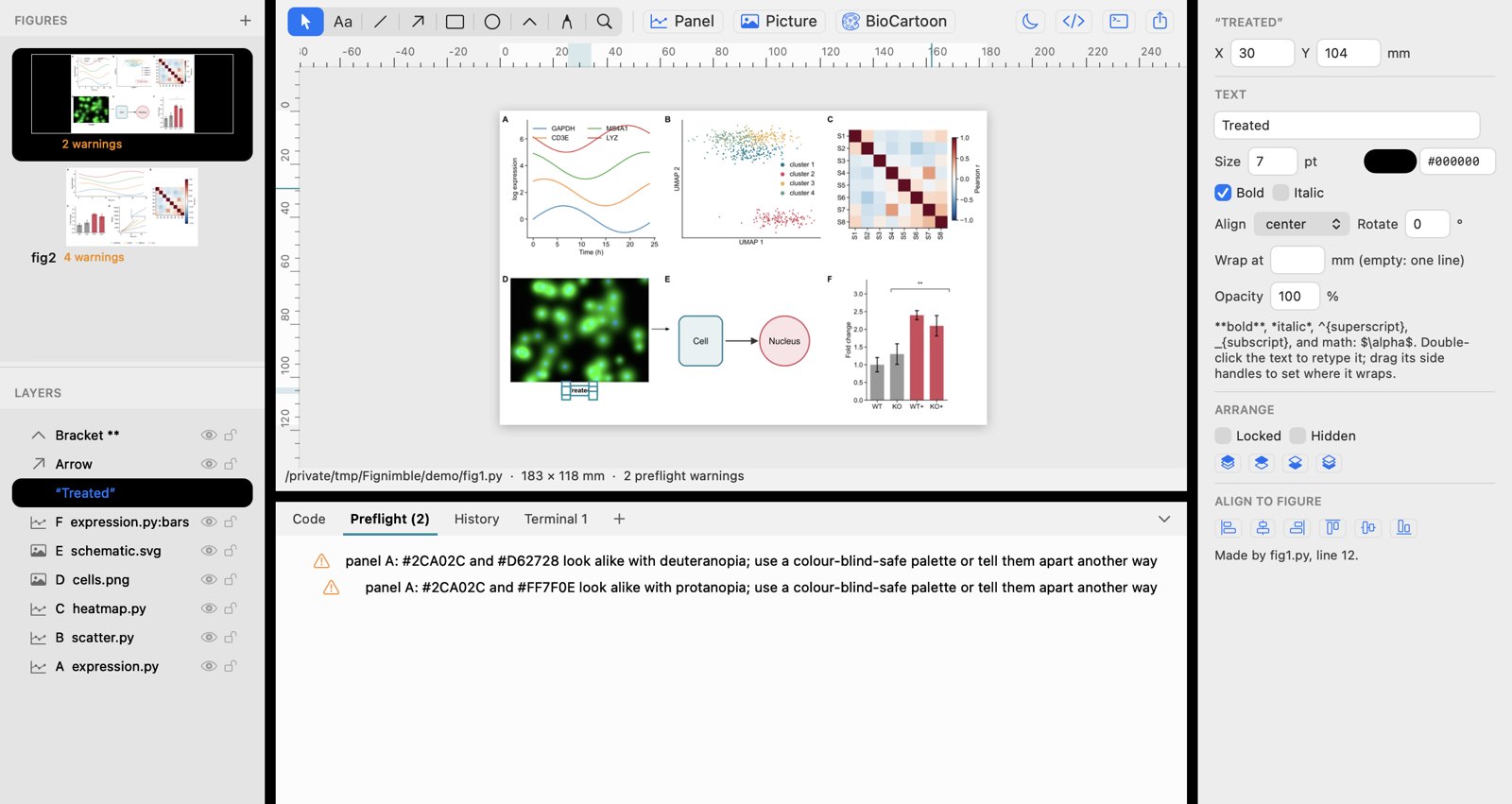
Every render checks what a journal's production office would. The status bar counts the warnings, the figure's thumbnail shows them, and View ▸ Preflight (⌥⌘P) lists them; click one to select the element.
- text below the minimum size, inside panels too (superscripts and subscripts excepted);
- pictures below the minimum resolution at their printed size;
- Type 3 fonts, which journals reject;
- elements and letters reaching outside the figure;
- two panels with the same letter;
- colors color-blind readers confuse;
- a figure width that isn't one of the journal's columns;
- panels whose code fails, with the error, and what to do when a package is missing.
fignimble check runs it on every figure of a project and exits with status 1 on problems, for scripts and CI.
Export
File ▸ Export Figure… (⌘E) writes the figure as:
| Format | What you get |
|---|---|
| PDF, EPS, SVG | vector, with real, editable TrueType text |
| TIFF (LZW), PNG, JPEG | pixels, at the resolution you set |
| PowerPoint (.pptx) | a 16:9 slide with the figure at its real size (scaled down if it doesn't fit), as a PNG with a vector copy that PowerPoint 2019 and later show instead; the caption becomes its alt text |
| Word (.docx), Excel (.xlsx), CSV, TSV | for a figure that is a table: the table as text |
The dialog asks which journal's rules to meet and the resolution, from 300 to 2400 dpi. It starts at General (300 dpi for photographs, 600 for pictures with text, 1200 for line art); pick a journal when the figure goes to it. A TIFF or JPEG below what the journal asks is raised to it: 1200 dpi for line art, 600 with pictures (Cell Press 1000 and 500). For PDF and EPS the resolution is that of what panels draw as pixels, such as heatmaps. After writing, Fignimble measures the file: its dpi, or each picture inside a PDF or EPS against what the journal asks for photographs.
For print: CMYK (PDF, EPS, TIFF, JPEG) and text as outlines (PDF, EPS, SVG). These and EPS use
Ghostscript (brew install ghostscript).
File ▸ Export All Figures as PDF… (⇧⌘E) writes every figure of the project.
From a terminal:
fignimble export fig1.py fig1.pdf
fignimble export fig1.py fig1.tiff --journal cell
fignimble export fig1.py fig1.eps --cmyk --outline
fignimble export fig1.py fig1-dark.pdf --dark
The clipboard
Edit ▸ Copy Figure as Picture (⇧⌘C, or ⌘C with nothing
selected) puts the whole figure on the clipboard as vector PDF and a 600 dpi PNG, for Word, PowerPoint, Keynote,
Illustrator, mail or chat. Copy and paste also move elements between figures, and a picture pasted from another app is
saved into images/.
Tables
Journals want tables as text: File ▸ Export Table… writes a table of the figure as an editable Word table, an Excel sheet, or a CSV or TSV file. See tables.