Panels and their code
A panel is drawn by a Python function that gets a matplotlib Figure exactly the panel's size:
fig.add_subplot(), fig.subplots(2, 2), fig.colorbar(...) and anything else matplotlib can draw work, and so do
libraries built on it, such as seaborn and scanpy. Leave out font sizes, fonts and line widths: the project's
style sets them for every panel.
Placing a panel
fig.panel("panels/expression.py", x=4, y=3, w=56, h=52)
fig.panel("panels/expression.py", x=65, y=3, w=56, h=52, function="bars", args={"genes": ["CD3E", "CD8A"]})
function picks another function of the file, so one file can draw several panels; args are passed to it as
keyword arguments. On the canvas: Insert ▸ New Panel from Code… (⇧⌘P) makes a new
panel file; Panel from Existing Code… places one you have; dropping a .py file does the same.
The code pane
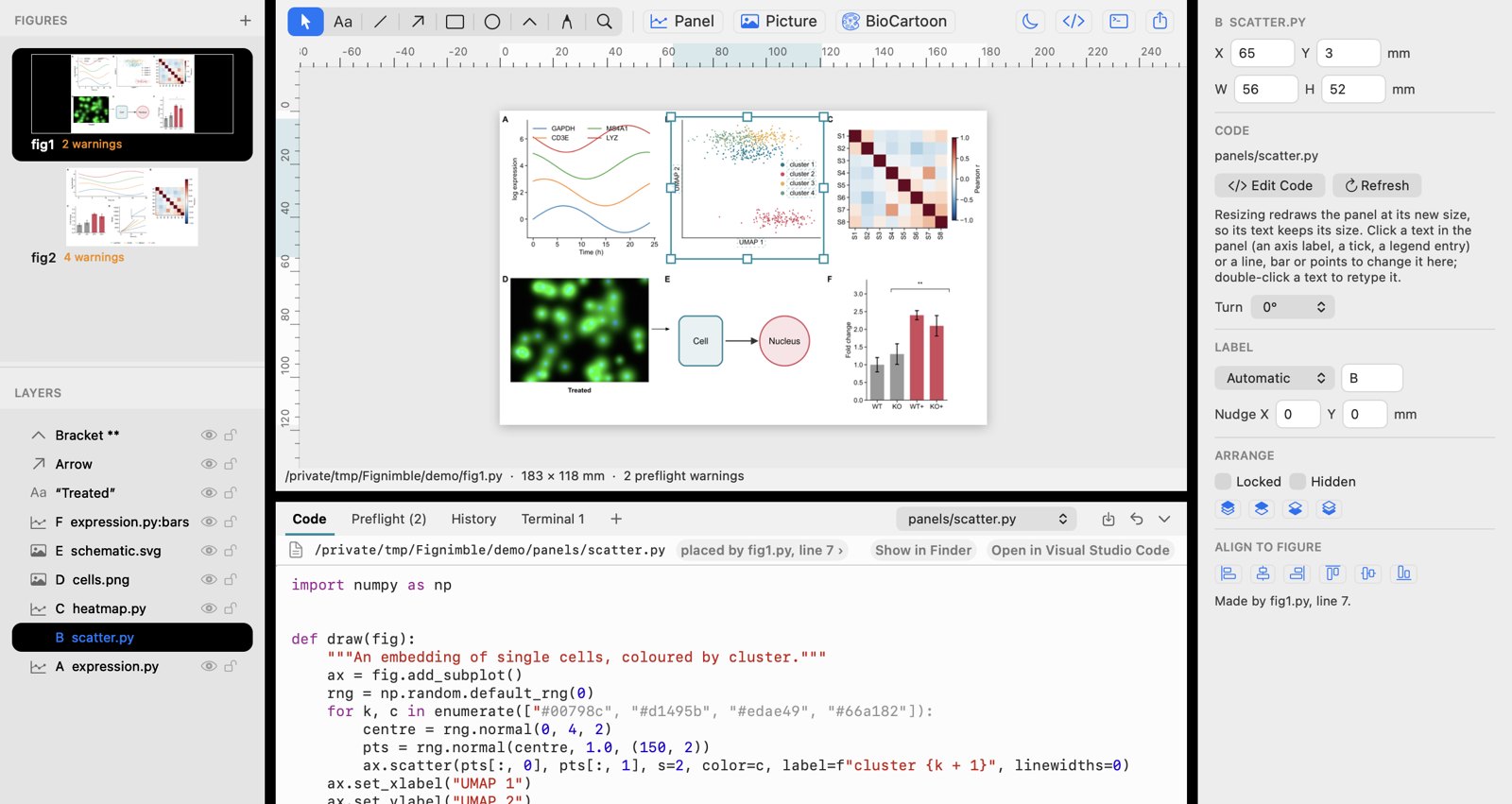
View ▸ Code (⌥⌘E) shows the code of whatever is selected: a panel's own code, at its function, with a link to the line of the figure that places it; or the figure's line that makes any other element. Double-click a panel to open its code. Edit and press ⌘S to apply. Open in Editor opens the file in VS Code or your editor.
Texts and marks inside a panel
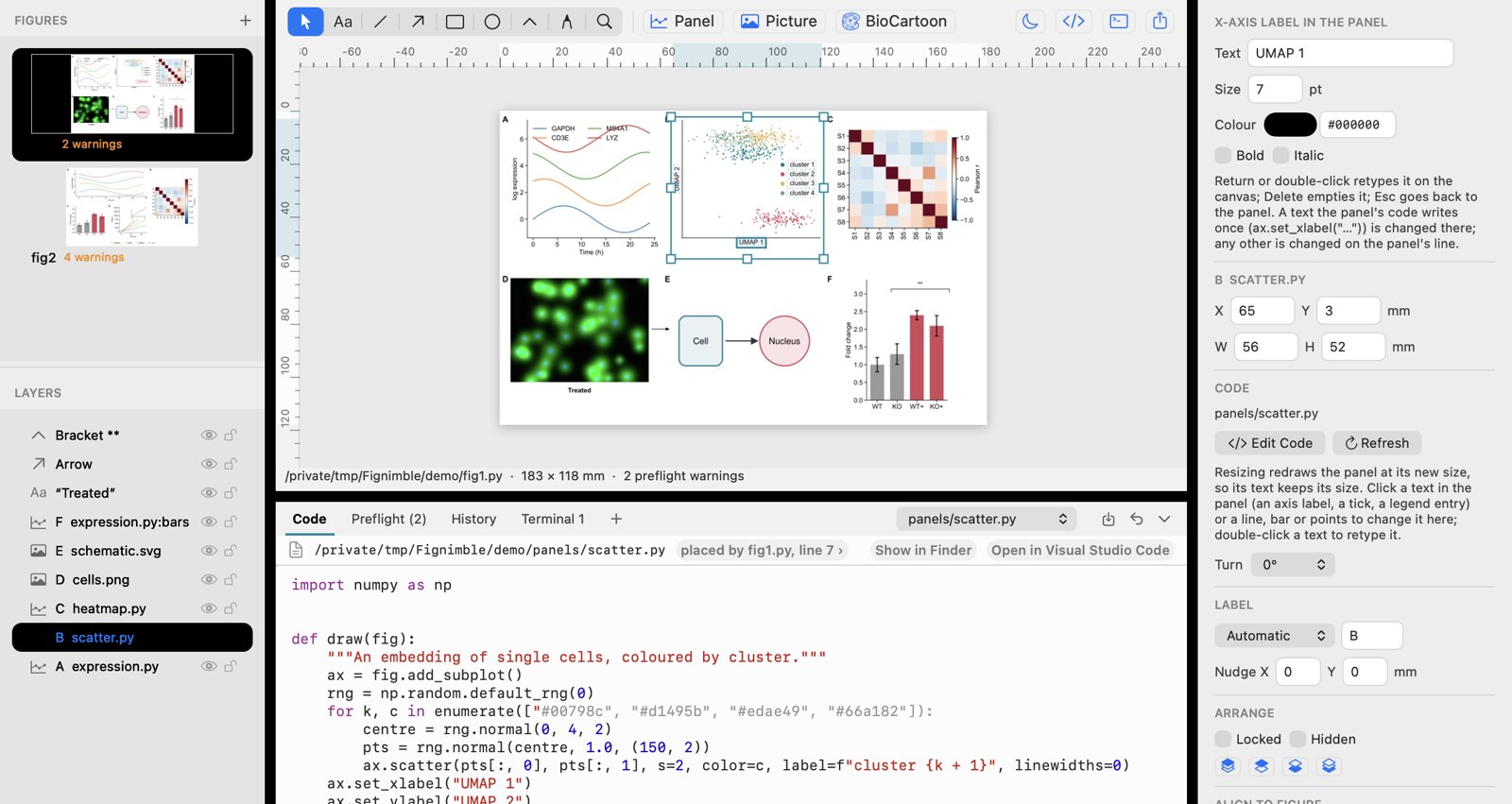
Click an axis label, a tick, a legend entry or a title inside a panel: the inspector edits that text, its size, its
color, bold and italic. Double-click it, or press Return, to retype it on the canvas. When the text is a string
literal in the panel's code, Fignimble changes it there
(ax.set_xlabel("UMAP 1", fontsize=9, color="#D55E00")); otherwise it is kept as an override on the panel's line
(texts={...}, text_style={...}), which Back to What the Code Draws removes.
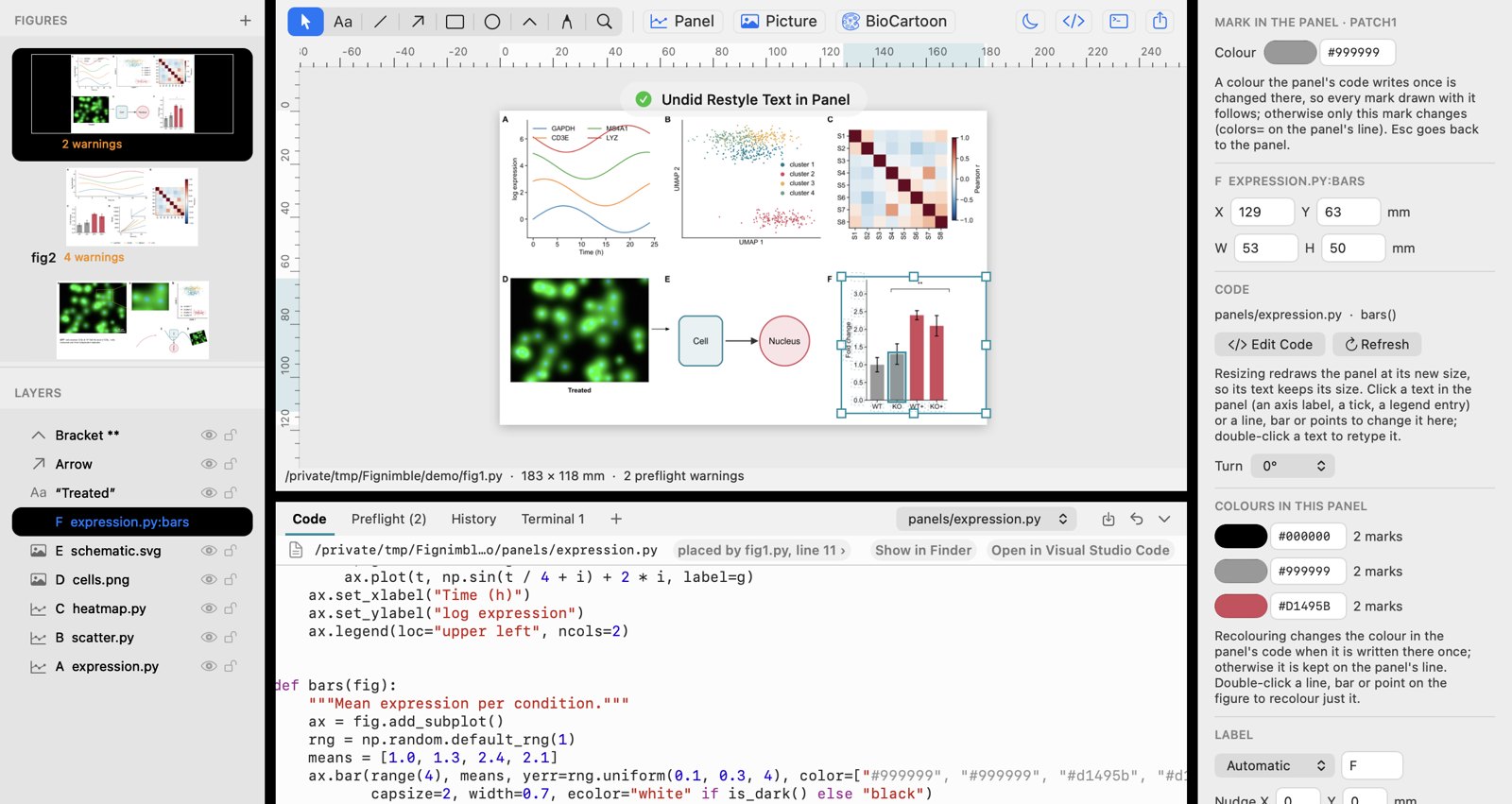
Select a panel and the inspector lists each color it draws with. Change one and every line, bar or point of that
color follows; double-click a single mark to recolor just it. The color is changed in the panel's code when it is
written there once, otherwise kept as colors={...} on the panel's line.
Packages a panel needs
List what the panels import beyond matplotlib and NumPy in the project's requirements.txt (pip's format). When the
project opens, Fignimble checks them and offers to install the missing ones into its Python, then draws the figure
again. Fignimble ▸ Check Packages… checks again. A panel that fails because a module is missing says so in the
preflight list.
Sharing slow work between panels
Panels are drawn one at a time, each from scratch. Work that several panels share, like loading and cleaning a large
table or fitting a statistical model, goes in a function decorated with @cached:
from fignimble import cached
import pandas as pd


@cached("data/recordings.csv")
def recordings():
    df = pd.read_csv("data/recordings.csv")
    ...                                   # slow cleaning
    return df
The result is kept, in memory and on disk, until the function's file changes, its arguments change, or one of the
listed files changes. Every caller gets the same object, so copy it (df.copy()) before changing it in place.
Python warnings
Deprecation and other warnings from a panel's code are kept with the panel instead of printed;
fignimble info fig1.py lists them under python warnings from panel code.
Panels from an SSH server
Insert ▸ Panel from SSH Server… lists a folder on a server (hosts come from ~/.ssh/config) and copies the panel
code you pick into panels/, its first line saying where it came from. Right-click the panel ▸ Update from Server
fetches it again, as one undo step. If the server asks for a password or a code, Fignimble shows the question
(Logging in). Data the panel reads has to be copied too. To work on a whole
project where it is, with its data, open it on the server instead: Projects on an SSH server.
Dark mode in panel code
Every figure has a dark version. Colors the style sets turn light; colors panel code
sets itself stay as they are. Use is_dark() where you would write black: