Pictures and BioCartoon icons
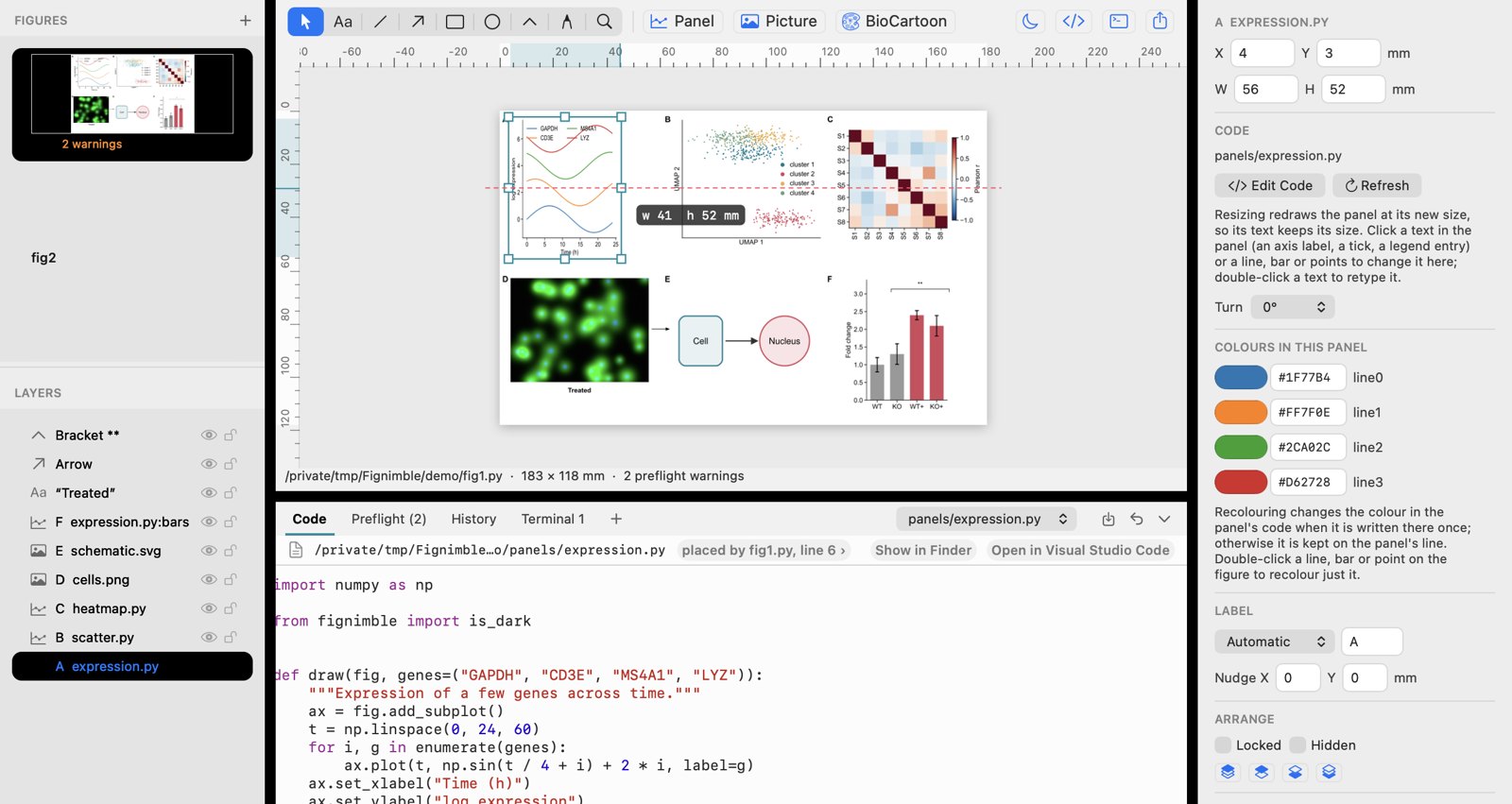
cells = fig.image("images/cells.png", x=4, y=63, w=52)              # h follows the picture's aspect
fig.image("images/schematic.svg", x=65, y=63, w=56, h=47)          # PDF and SVG stay vector
Pictures are PNG, TIFF, JPEG, PDF or SVG. Insert ▸ Picture… (⇧⌘I), dropping a
file, or pasting a picture from another app copies it into images/ and places it. Pictures are lettered like
panels; give one label=None for no letter, or a letter of its own.
Replace… in the inspector swaps the file and keeps the place.
Cropping, turning and mirroring
Double-click a picture (or Object ▸ Crop Picture, ⌥⌘K) and drag its handles to
crop; drag outward to uncrop. In code, crop=(left, top, right, bottom) in fractions of the picture.
rotation= turns a picture any angle (PDF and SVG in quarter turns), and flip="h" or flip="v" mirrors it; PDF
and SVG pictures stay vector when mirrored. The inspector and the Object menu have both.
Zoom boxes and scale bars
detail = fig.inset(Image("images/cells.png"), within=cells, x=0.6, y=0.6, w=0.38, h=0.38)
fig.zoom(cells, detail, region=(0.2, 0.2, 0.25, 0.25))       # a box and lines; the inset shows what's in the box
fig.scalebar(cells, length=50, unit="µm", pixel_size=0.325)  # sized from the picture's real pixels
Insert ▸ Zoom Box on one picture makes the magnified inset too; drag the box and the inset follows. Insert ▸ Scale Bar on Picture… asks for the pixel size.
BioCartoon icons
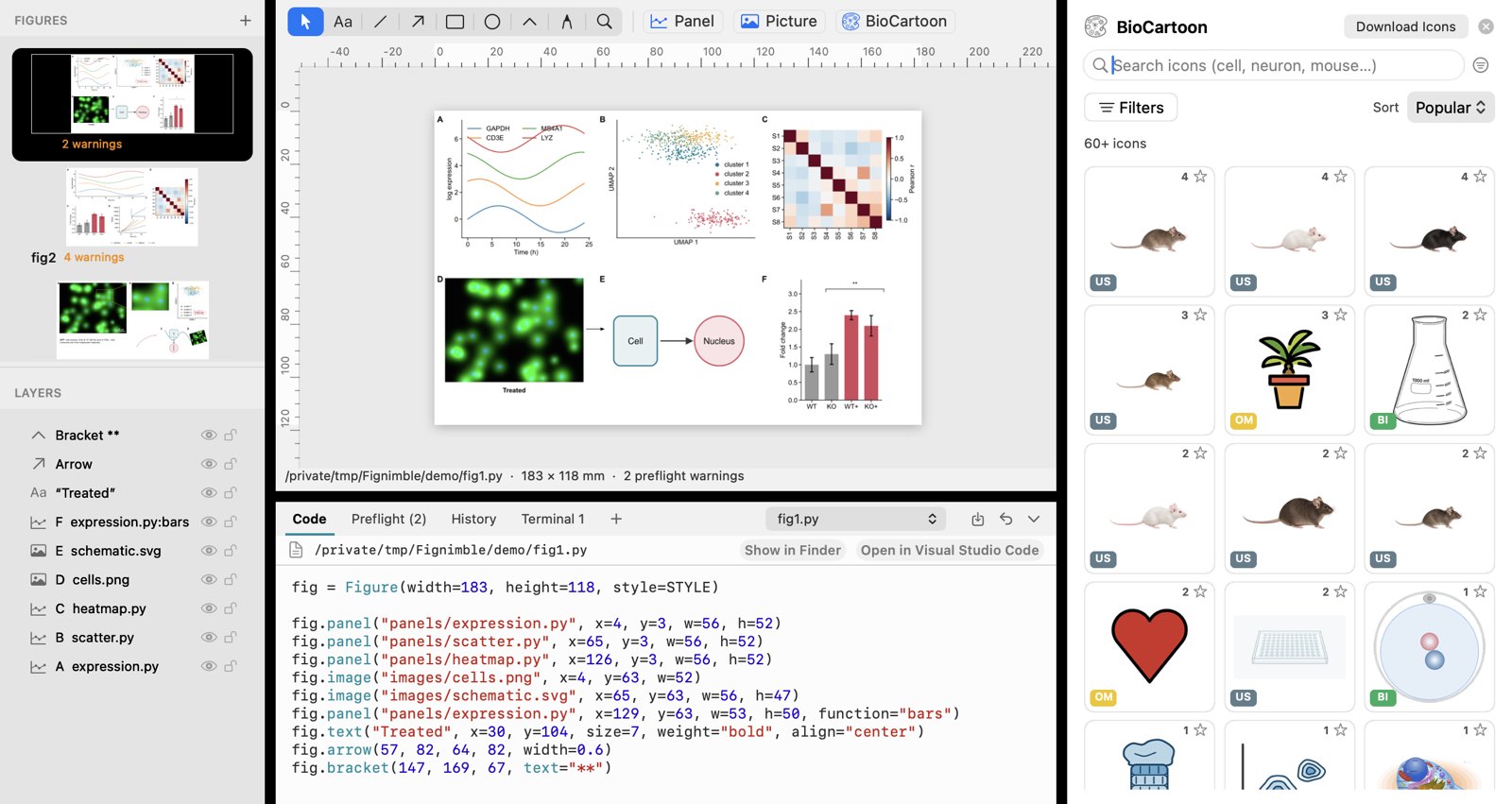
Insert ▸ BioCartoon Icons… (⇧⌘B) or the BioCartoon toolbar button opens a
search of more than 15,000 open-licensed science icons from BioCartoon in place of the
inspector: cells, organelles, organisms, lab equipment. Filter by collection, category and license, then drag an
icon onto the figure or double-click it. It is saved into images/ (as SVG when it is published as one, so it stays
vector) and placed without a panel letter.
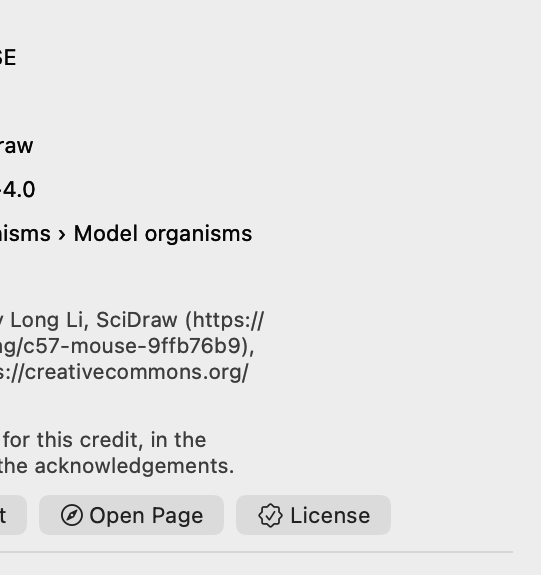
Select a placed icon and the inspector shows where it comes from: its title, author, collection, license, category and ID, and the full credit. It says whether the license asks for credit in the legend, and has buttons to copy the credit and to open the icon's page and its license. The record travels inside the picture file, so it is there offline and in a colleague's copy of the project.
Schematics
A schematic made of shapes, text and icons can carry its own panel letter: give its background rectangle
label="auto", and it is lettered with the panels in reading order.